Configure a dashboard
Create a dashboard to visualize the metadata with widgets and custom display options.
Dashboard configuration applies only to the runs that are currently made visible by a person viewing it. To create a comparison of selected runs, use reports.
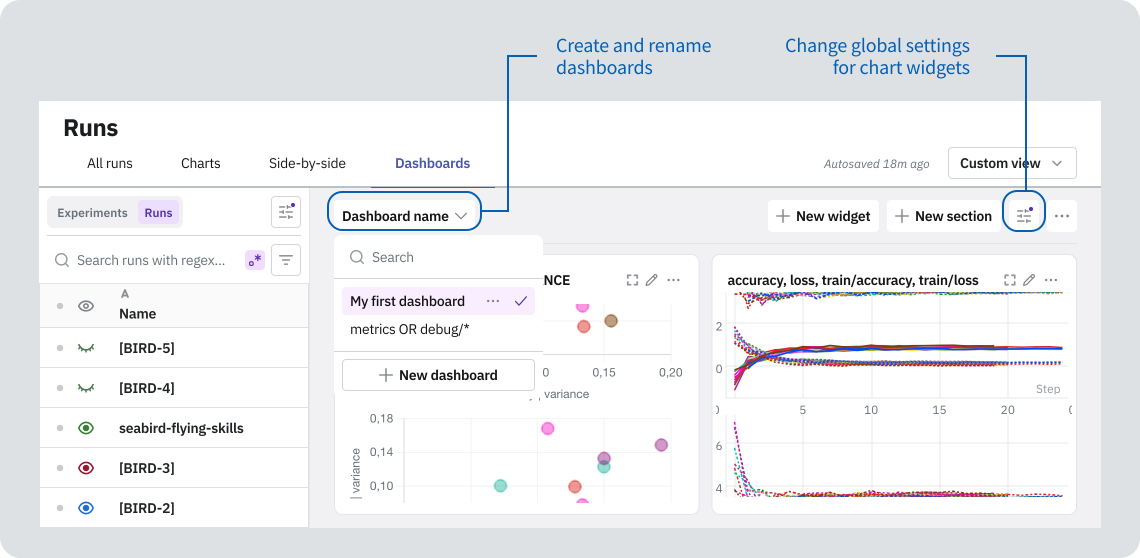
Create a dashboard
There are two ways to create a dashboard:
- Create an empty dashboard, then add and configure widgets.
- Export an existing chart view.
To create an empty dashboard:
- Navigate to the Dashboards tab.
- From the toolbar, expand the dropdown menu and select New dashboard.
- Name your dashboard.
Add widgets
To add a widget to a dashboard, click New widget in the top toolbar.
Note that when you resize or reposition the widgets, the layout is saved as part of the dashboard configuration.
Supported widgets
In dashboards, you can use the following widget types:
Edit chart widget settings
Apart from customizing each chart individually, you can configure settings to apply across all charts in the dashboard. Use Controls in the top toolbar to modify the following:
- Apply smoothing
- Change axis settings
- Change X-axis values
- Filter displayed data based on step
- Display or hide point previews
Note that the changes you make are saved automatically and visible to everyone who views the dashboard.
Delete widgets
To delete a single widget, access its menu () and select Delete.
To delete widgets in bulk:
- Select widgets by clicking the check box next to the widget title.
- From the toolbar that appears, select Delete.
Configure sections
With sections, you can organize widgets into titled, collapsible segments.
Create a section
To create a section:
- Select New section.
- Add widgets. You can create widgets directly inside the section or drag already existing widgets into it.
Create a dynamic section
Instead of manually adding widgets into a section, you can use regex to create multiple widgets at once. A dynamic section creates one widget for each attribute that matches the pattern. The default widget for each attribute is determined by the attribute's data type.
To create a dynamic section:
- Select New section, then Create dynamic section.
- In the Dynamic selection input box, use regex to specify the attributes to visualize.
- To verify the attributes that match the pattern, use the right-hand panel.
Compare samples at different steps
All widgets within a section share the same step. That means changing the displayed step in one file series widget updates other widgets in the section. In charts and histograms, the selected step is marked with a vertical line.
To browse files logged at different steps without updating other widgets, hold or while pressing the arrow keys. To reset to the default step, double click the file series widget.
Edit and organize sections
- To rename the section, double click its title or select Edit.
- To move the section up or down, drag and drop it to the desired position.
Rename a dashboard
To rename the dashboard, access the dashboard menu () and enter a new name in the input box.