Configure a custom code widget
In reports, you can write your own Python code and render it as an interactive widget. The code is executed in a secure sandbox and the widget reacts to viewer actions, such as filtering and selecting runs.
The custom code widget supports rendering everything compatible with Jupyter and IPython, for example:
- pandas tables
- Matplotlib plots
- Plotly charts
- HTML and JavaScript elements
This is an experimental feature that is available only to select self-hosted customers. To participate in the early access program and help us improve it, contact Neptune support.
To view and create custom code widgets, first enable them:
- In your account settings, go to Experimental features.
- Enable Custom code widgets.
Create a widget
To add a custom code widget to your report:
-
In the top toolbar, click New widget and select Custom code.
-
(Optional) Change the widget title.
Define the widget code
The widget code consists of three parts:
-
=== TYPE DEFINITIONS & CONTEXT VARIABLES ===This is the read-only code that represents the current state of the report.
In your custom code, reference the variables and type definitions included in this section to make the widget respond to viewer actions.
-
=== EXAMPLE FUNCTION ===The widget comes with a predefined function that returns a runs table with the attributes of the
sysnamespace for the currently selected runs. The runs table is returned as a pandas dataframe and rendered as an HTML table inside the widget.See the predefined function
def main():

    dfs = []
    for run_set in report_context.data_sources.values():
        if isinstance(run_set, RunSet) and len(run_set.runs) > 0:
            df = nq_runs.fetch_runs_table(
                project=run_set.project,
                runs=Filter.matches("sys/id", "|".join(run_set.runs)),
                attributes="sys/.*",
            )
            dfs.append(df)
        elif isinstance(run_set, ExperimentSet) and len(run_set.experiments) > 0:
            df = nq.fetch_experiments_table(
                project=run_set.project,
                experiments=run_set.experiments,
                attributes="sys/.*",
            )
            dfs.append(df)

    run_table_df = pd.concat(dfs, axis="index")
    return run_table_df
Replace this function with your own code. See examples.
-
=== HOW TO EXECUTE LOCALLY ===The line
if __name__ == "__main__":ensures safe importing of the main module. For details, see the Python documentation.This part is necessary to execute the code locally.
Configure widget inputs
To let report viewers interact with the widget, define inputs. For example, you can add search, sorting, or filtering directly in the widget.
To add a widget input:
-
In Widget inputs, click Add input.
-
In Type, select one of the following options:
- Text
- Number
- Slider
- Dropdown
- Checkbox
-
In Label, provide a descriptive identifier of the input for the report viewers.
-
The value of the ID field is auto-generated. Use it to reference the input in your custom code.
Supported packages
The custom code widget requires Python 3.13 and supports the following packages:
- httpx
- Jinja2
- matplotlib
- neptune-query
- numpy
- pandas
- plotly
- pydantic
- requests
Execute the code locally
To grab the existing code and develop it in your local environment, use the Copy code button.
Note that for each widget input, the copied code contains a hard-coded value that is based on the value currently selected in the report. As a result, you get the same output both locally and when executing code in the Neptune app.
Move or duplicate a widget
You can move the custom code widget to a new or existing report. You can also duplicate the widget in the report that you're currently working on.
To access the options, open the widget menu ().
Examples
The following examples show custom code widgets optimized for analyzing LLM eval results.
To recreate these widgets in your own project, first log mock data using the script:
- Download the CSV file with evaluation data.
- Save the file as
evals.csvin the same directory as the script.
See the script for logging mock data
This example script requires Python version 3.8 or higher, plus the following dependencies:
- neptune-scale
- pandas
import csv
import os
import random
import sys
import tempfile
from datetime import datetime
from pathlib import Path

import pandas as pd
from neptune_scale import Run

PROMPTS = [
    "Implement a function that finds the maximum subarray sum using Kadane's algorithm.",
    "Write a function that checks if a binary tree is balanced.",
    "Create a function that finds the longest palindromic substring.",
    "Implement a basic LRU cache with get and put operations.",
    "Write a function that merges two sorted linked lists.",
]

OUTPUTS = [
    """def max_subarray(nums):
    max_sum = curr_sum = nums[0]
    for n in nums[1:]:
        curr_sum = max(n, curr_sum + n)
        max_sum = max(max_sum, curr_sum)
    return max_sum""",
    """def factorial(n):
    if n <= 1:
        return 1
    return n * factorial(n - 1)""",
    """class BST:
    def __init__(self):
        self.root = None
    def insert(self, val):
        if not self.root:
            self.root = TreeNode(val)""",
    """def longest_common_subsequence(s1, s2):
    m, n = len(s1), len(s2)
    dp = [[0] * (n + 1) for _ in range(m + 1)]
    for i in range(1, m + 1):
        for j in range(1, n + 1):
            if s1[i-1] == s2[j-1]:
                dp[i][j] = dp[i-1][j-1] + 1
            else:
                dp[i][j] = max(dp[i-1][j], dp[i][j-1])
    return dp[m][n]""",
]

COT_TEMPLATE = """### Understanding the problem
> Analyzing: "{prompt}"
> Identifying requirements and constraints

### Planning the solution
> Designing algorithm approach
> Considering time/space complexity

### Implementing the code
> Writing solution step by step

### Conclusion
> {verdict}"""

TYPES = ["grader"] * 4 + ["match"] * 3 + ["sampling"] * 3
MODELS = ["gpt-4o", "claude-3.5-sonnet"]


def generate_rows(step: int, total_steps: int) -> pd.DataFrame:
    progress = step / total_steps
    rows = []
    for i in range(10):
        eval_type = TYPES[i]
        model = MODELS[i % 2]
        prompt = random.choice(PROMPTS)
        output = random.choice(OUTPUTS)

        if eval_type == "grader":
            grade = str(min(5, max(0, int(2 + progress * 3 + random.uniform(-1, 1)))))
        elif eval_type == "match":
            grade = str(1 if random.random() < (0.3 + progress * 0.5) else 0)
        else:
            n = random.randint(1, 4)
            scores = [
                1 if random.random() < (0.4 + progress * 0.4) else -1 for _ in range(n)
            ]
            grade = str(scores)

        verdict = (
            "The implementation correctly solves the problem."
            if random.random() < progress
            else "The output does not match the requested functionality."
        )
        cot = COT_TEMPLATE.format(prompt=prompt[:50], verdict=verdict)

        rows.append(
            {
                "type": eval_type,
                "input_prompt": prompt,
                "generated_output": output,
                "grader_model": model,
                "grade": grade,
                "generated_cot": cot,
            }
        )
    return pd.DataFrame(rows)


def calculate_metrics(df: pd.DataFrame) -> dict:
    match_df = df[df["type"] == "match"]
    accuracy = match_df["grade"].astype(int).mean()

    sampling_df = df[df["type"] == "sampling"]
    all_scores = []
    for g in sampling_df["grade"]:
        all_scores.extend(eval(g))
    pos = sum(1 for s in all_scores if s == 1)
    neg = sum(1 for s in all_scores if s == -1)
    total = pos + neg

    return {
        "accuracy/match": accuracy,
        "sampling_ratio/positive": pos / total if total > 0 else 0.5,
        "sampling_ratio/negative": neg / total if total > 0 else 0.5,
    }


def main():
    required = ["NEPTUNE_API_TOKEN", "NEPTUNE_PROJECT"]
    if not all(k in os.environ for k in required):
        sys.exit(
            "Error: Set NEPTUNE_API_TOKEN and NEPTUNE_PROJECT environment variables"
        )

    total_steps = 20
    experiment_name = f"evals-{datetime.now():%Y-%m-%d-%H-%M-%S}"

    with tempfile.TemporaryDirectory() as tmpdir:
        with Run(experiment_name=experiment_name, run_id=experiment_name) as run:
            for step in range(total_steps):
                df = generate_rows(step, total_steps)
                metrics = calculate_metrics(df)
                run.log_metrics(data=metrics, step=step)

                csv_path = Path(tmpdir) / f"evals_step_{step}.csv"
                df.to_csv(csv_path, index=False, quoting=csv.QUOTE_ALL)
                run.log_files(files={"evals/checkpoint": str(csv_path)}, step=step)

            print(f"Run URL: {run.get_run_url()}")


if __name__ == "__main__":
    main()
Visualize multi-dimensional data
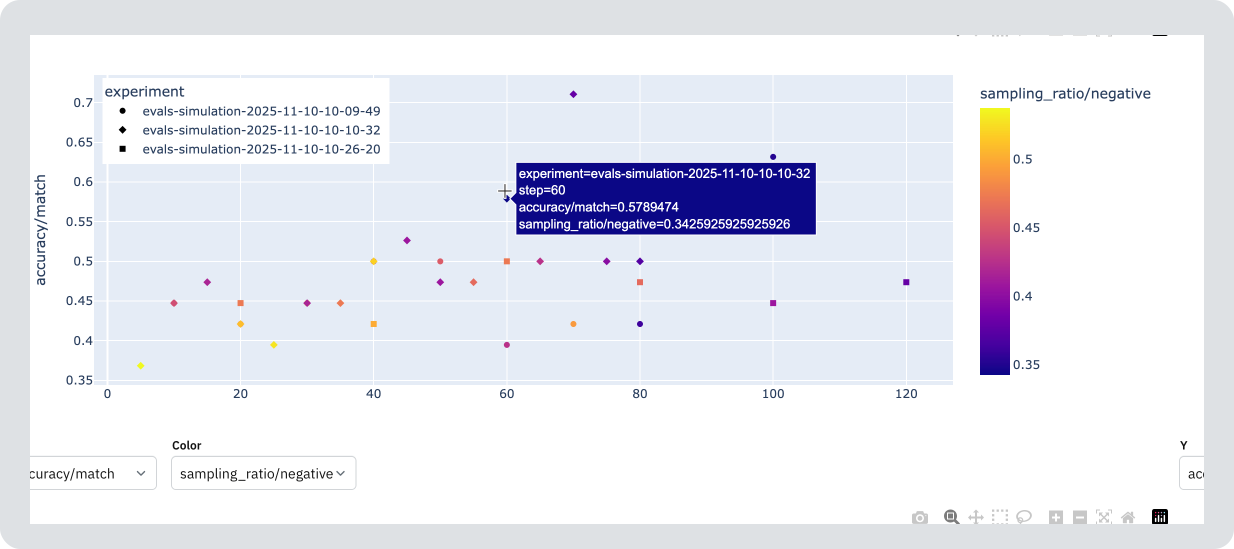
This example shows how to visualize multi-dimensional data with plotly and neptune-query:
- The returned scatter plot uses symbols to distinguish between experiments.
- Report viewers can choose which attributes to display on the Y-axis and change their color.
See the widget code
from neptune_query.filters import Filter
import plotly.express as px


def fetch_filtered_series(widget_context: WidgetContext, report_context: ReportContext) -> pd.DataFrame:
    dfs = []
    for run_set in report_context.data_sources.values():
        if isinstance(run_set, RunSet):
            df = nq_runs.fetch_metrics(
                project=run_set.project,
                runs=Filter.matches("sys/id", "|".join(run_set.runs)),
                attributes=["sys/custom_run_id", "accuracy/match", "sampling_ratio/positive", "sampling_ratio/negative"],
            )
            df["run_or_exp"] = df.index.get_level_values(0)
            dfs.append(df)
        elif isinstance(run_set, ExperimentSet):
            df = nq.fetch_metrics(
                project=run_set.project,
                experiments=run_set.experiments,
                attributes=["sys/custom_run_id", "accuracy/match", "sampling_ratio/positive", "sampling_ratio/negative"],
            )
            df["run_or_exp"] = df.index.get_level_values(0)
            dfs.append(df)
        else:
            raise NotImplementedError(f"Unexpected {type(run_set)}=")

    run_table_df = pd.concat(dfs, axis="index")
    return run_table_df.reset_index()


def main():
    df = fetch_filtered_series(widget_context, report_context)
    fig = px.scatter(
        df,
        x="step",
        y="accuracy/match",
        color="sampling_ratio/negative",
        symbol="run_or_exp",
    )
    fig.update_layout(legend=dict(
        yanchor="top",
        y=0.99,
        xanchor="left",
        x=0.01
    ))
    fig.show()
- To speed up your queries, apply filters using neptune-query and narrow down the results to the specific attributes that you want to display.
- When loading series that have over 1000 steps, choose
fetch_metric_buckets()overfetch_metrics().
Interactive table
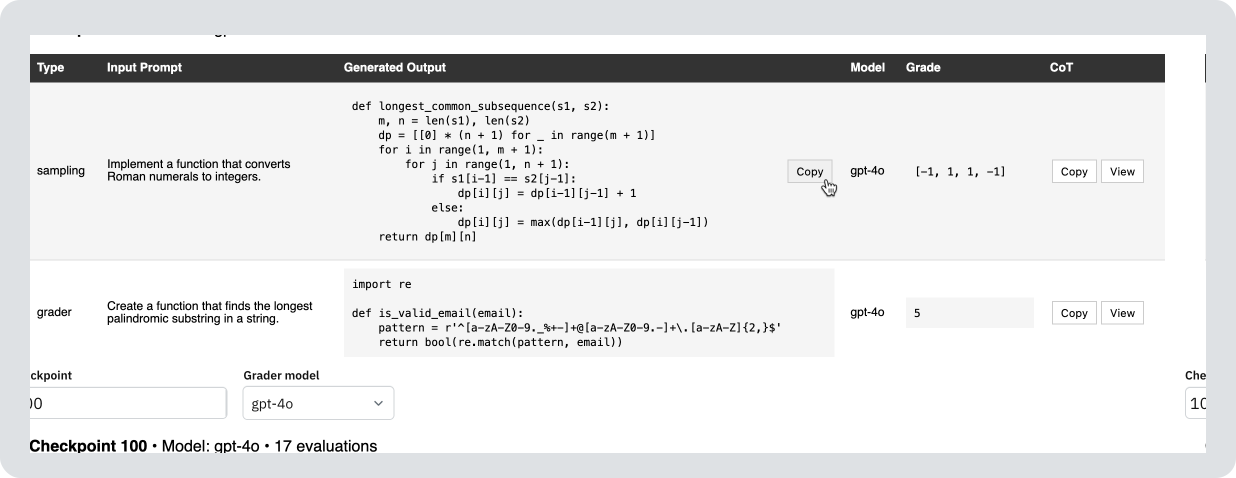
This example shows an interactive table that lets report viewers analyze individual eval samples:
- Use neptune-query to load a CSV file selected by the report viewer.
- Display the selected file as an HTML table styled with CSS.
- Use JavaScript to hide long chain-of-thought strings and make them visible on button click.
See the widget code
def esc_html(text):
return str(text).replace('&', '&').replace('<', '<').replace('>', '>').replace('"', '"').replace("'", ''')
def esc_attr(text):
return str(text).replace('&', '&').replace('"', '"').replace("'", ''').replace('<', '<').replace('>', '>')
HTML_TEMPLATE = """<!DOCTYPE html>
<html>
<head>
<style>
body {{ font-family: sans-serif; margin: 20px; }}
table {{ width: 100%; border-collapse: collapse; }}
th {{ background: #333; color: white; padding: 8px; text-align: left; font-size: 12px; }}
td {{ padding: 8px; border-bottom: 1px solid #ddd; font-size: 12px; position: relative; }}
tbody tr:hover {{ background: #f5f5f5; }}
.input-cell {{ max-width: 200px; word-wrap: break-word; white-space: normal; }}
.copyable-cell {{ position: relative; }}
.copy-btn {{ display: none; position: absolute; right: 8px; top: 50%; transform: translateY(-50%); cursor: pointer; border: 1px solid #ccc; background: white; padding: 4px 8px; font-size: 11px; }}
.copy-btn:hover {{ background: #f0f0f0; }}
.copyable-cell:hover .copy-btn {{ display: block; }}
.modal {{ display: none; position: fixed; z-index: 1000; left: 0; top: 0; width: 100%; height: 100%; background: rgba(0,0,0,0.5); }}
.modal-content {{ background: white; margin: 5% auto; padding: 20px; width: 80%; max-width: 800px; max-height: 80vh; overflow-y: auto; }}
.modal-header {{ display: flex; justify-content: space-between; margin-bottom: 15px; }}
.modal-title {{ margin: 0; font-size: 13px; font-weight: normal; }}
.close {{ cursor: pointer; font-size: 24px; background: none; border: none; }}
.cot-content {{ font-size: 11px; line-height: 1.4; }}
button {{ cursor: pointer; border: 1px solid #ccc; background: white; padding: 4px 8px; margin: 0 2px; font-size: 11px; }}
button:hover {{ background: #f0f0f0; }}
pre {{ background: #f5f5f5; padding: 8px; overflow-x: auto; margin: 0; }}
code {{ font-family: monospace; font-size: 11px; }}
.toast {{ display: none; position: fixed; bottom: 20px; right: 20px; background: #4caf50; color: white; padding: 10px 16px; border-radius: 4px; z-index: 2000; }}
@media (prefers-color-scheme: dark) {{
body {{
background: #0f1115;
color: #e6e6e6;
}}
table {{
background: #141821;
}}
td {{
background: #141821;
border-bottom: 1px solid #2a3140;
}}
tbody tr:hover,
tbody tr:hover td {{
background: #1b2230;
}}
pre {{
background: #0b0e14;
}}
button,
.copy-btn {{
background: #141821;
color: #e6e6e6;
border-color: #2a3140;
}}
button:hover,
.copy-btn:hover {{
background: #1b2230;
}}
.modal-content {{
background: #141821;
color: #e6e6e6;
border: 1px solid #2a3140;
}}
}}
</style>
</head>
<body>
<div><strong>Checkpoint {checkpoint}</strong> • Model: {model} • {count} evaluations</div><br>
<table>
<thead><tr><th>Type</th><th>Input Prompt</th><th>Generated Output</th><th>Model</th><th>Grade</th><th>CoT</th></tr></thead>
<tbody>{rows}</tbody>
</table>
<div id="cotModal" class="modal">
<div class="modal-content">
<div class="modal-header"><h3 id="modalTitle" class="modal-title">Chain of Thought</h3><button class="close" onclick="closeModal()">×</button></div>
<div id="cotContent" class="cot-content"></div>
</div>
</div>
<div id="toast" class="toast">Copied!</div>
<script>
function unesc(t) {{ var d = document.createElement('div'); d.innerHTML = t; return d.textContent || d.innerText || ''; }}
function copy(t) {{ var a = document.createElement('textarea'); a.value = t; a.style.position = 'fixed'; a.style.left = '-9999px'; document.body.appendChild(a); a.select(); document.execCommand('copy'); document.body.removeChild(a); var x = document.getElementById('toast'); x.style.display = 'block'; setTimeout(function() {{ x.style.display = 'none'; }}, 2000); }}
function copyCell(btn) {{ var c = btn.closest('td'); copy(unesc(c.getAttribute('data-text'))); }}
function copyCoT(btn) {{ var c = btn.closest('td'); copy(unesc(c.getAttribute('data-cot'))); }}
function showCoT(btn) {{ var c = btn.closest('td'); var modal = document.getElementById('cotModal'); var prompt = c.getAttribute('data-prompt'); document.getElementById('modalTitle').textContent = 'CoT: ' + prompt + '...'; document.getElementById('cotContent').innerHTML = '<pre><code>' + unesc(c.getAttribute('data-cot')).replace(/</g, '<').replace(/>/g, '>') + '</code></pre>'; modal.style.display = 'block'; }}
function closeModal() {{ document.getElementById('cotModal').style.display = 'none'; }}
window.onclick = function(e) {{ if (e.target.id === 'cotModal') closeModal(); }}
document.addEventListener('keydown', function(e) {{ if (e.key === 'Escape') closeModal(); }});
</script>
</body>
</html>"""
ROW_TEMPLATE = """<tr>
<td>{type}</td>
<td class="input-cell copyable-cell" data-text="{input_prompt_attr}">{input_prompt}<button class="copy-btn" onclick="copyCell(this)">Copy</button></td>
<td class="copyable-cell" data-text="{output_attr}"><pre><code>{output}</code></pre><button class="copy-btn" onclick="copyCell(this)">Copy</button></td>
<td>{grader_model}</td>
<td><pre><code>{grade}</code></pre></td>
<td data-cot="{cot}" data-prompt="{prompt_preview}"><button onclick="copyCoT(this)">Copy</button><button onclick="showCoT(this)">View</button></td>
</tr>"""
def download_file_at_step(report_context: ReportContext, checkpoint_step: int):
# NOTE: this example only reads from the first run set activated in the report
data_source = list(report_context.data_sources.values())[0]
if data_source.data_source_type == "experiment_set":
series = nq.fetch_series(
project=data_source.project,
experiments=data_source.experiments[0],
attributes="evals/checkpoint",
step_range=(checkpoint_step, checkpoint_step)
)
else:
raise Exception("This example only supports experiments")
file_path_df = nq.download_files(files=series, destination="checkpoint.csv")
df = pd.read_csv(file_path_df.iloc[0]["evals/checkpoint"])
return df
def main():
checkpoint_input = widget_context.inputs.get("checkpoint")
checkpoint_step = 0 if checkpoint_input is None else int(checkpoint_input.current_value)
try:
df = download_file_at_step(report_context, checkpoint_step)
except Exception as e:
msg = f"Failed to load evals at {checkpoint_step=}:\n{e}"
raise ValueError(msg) from e
grader_model_input = widget_context.inputs.get("grader_model")
grader_model_filter = None if grader_model_input is None else grader_model_input.current_value
if grader_model_filter:
df = df[df['grader_model'] == grader_model_filter]
else:
df = df[df['grader_model'].notna() & (df['grader_model'] != '')]
rows = ''.join([
ROW_TEMPLATE.format(
type=esc_html(row['type']),
input_prompt=esc_html(row['input_prompt']),
input_prompt_attr=esc_attr(row['input_prompt']),
output=esc_html(row['generated_output']),
output_attr=esc_attr(row['generated_output']),
grader_model=esc_html(row['grader_model']),
grade=esc_html(row['grade']),
cot=esc_attr(row['generated_cot']),
prompt_preview=esc_attr(str(row['input_prompt'])[:50])
)
for _, row in df.iterrows()
])
html = HTML_TEMPLATE.format(
checkpoint=checkpoint_step,
model=grader_model_filter or 'All',
count=len(df),
rows=rows
)
return raw_html(html)
- To convert a Python string into HTML output that can be rendered inside the widget, use the
raw_html()function in yourmain()function. You can then use the<style>tag to apply CSS styles and the<script>tag to include JavaScript code. - This example supports widget inputs. To make the widget react to user actions when they view it in the app, define a
Checkpointslider with values from 0 to 20 or aGrader modeldropdown with two values: "gpt-4o" and "claude-3.5-sonnet".
Due to security reasons, it might be impossible to use some of the third-party JavaScript libraries in your environment. For help, contact your administrator or Neptune support.