Charts in Neptune
Neptune app displays all logged numerical series, that is FloatSeries attributes, as charts. You can analyze the logged metadata in the following ways:
- To visualize each logged metric as a separate chart, use the Charts tab.
- To create your own charts, configure chart widgets in dashboards and reports.
Change graph plotting order
To control which graphs are plotted in the foreground, change the order of the runs in the runs table. Graphs are drawn from top to bottom:
- The topmost run is plotted in the background and the bottom-most run in the foreground.
- When visualizing run sets in a report, the leftmost set is plotted in the foreground.
Highlighting data
When you hover over a metric in a chart, the graphs are highlighted in the following way:
-
In single run mode or when there's one run selected:
- The metric that you hover over is highlighted in all charts in your current view.
- For example, when you hover over accuracy in one chart, this metric is highlighted in all charts where accuracy is plotted.
-
In compare mode with multiple runs selected:
- The run and the metric that you hover over are highlighted in the chart that you're interacting with. In other charts, all metrics of the run that you hover over are highlighted.
- For example, when you hover over the accuracy of the
astute-kittiwakerun in a chart, this metric and this run are highlighted. At the same time, all metrics of theastute-kittiwakerun are highlighted in other charts in your current view.
Highlighting outliers
To help you identify outliers, the error bands in charts have visually distinct borders.
For details, see Show borders around error bands.
Share charts as images
You have several options to share charts with your team, including exporting them as a PNG image.
Screenshot mode
In dashboards, reports, Attributes tab, and Charts tab, use the screenshot mode to capture visualizations manually.
In the screenshot mode, each chart comes with a simplified legend. It helps viewers map the colors and line styles used in the chart to the metrics and runs that they represent.
To enter or exit the screenshot mode, press + on your keyboard.
Show or hide inherited datapoints
By default, charts include metrics inherited from ancestor runs. To show or hide the history:
- From the runs table toolbar, access Controls.
- Enable or disable Show inherited datapoints.
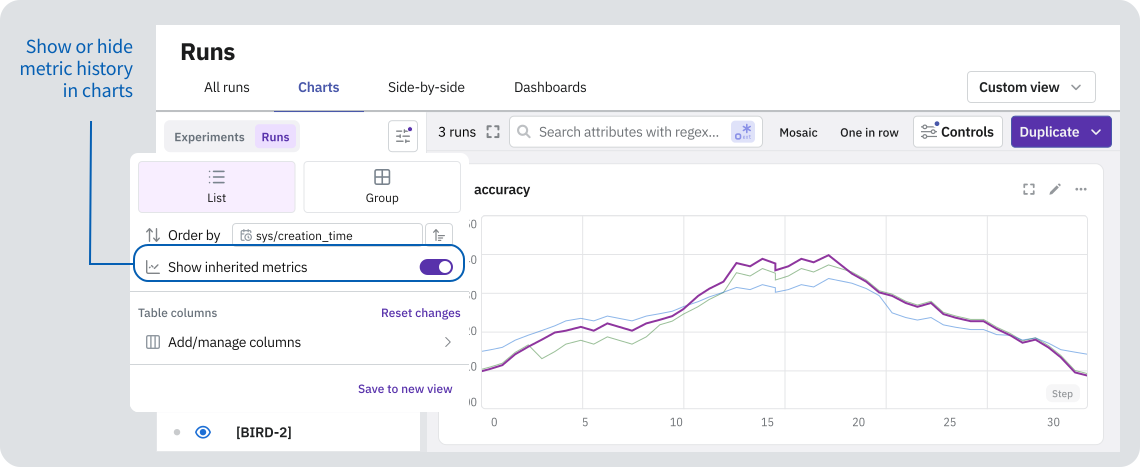
For details, see Show or hide inherited datapoints.
Zoom in charts
To zoom in, click and drag over an area of the chart.
You have two ways to zoom out:
- To zoom out by a factor of 2, double-click anywhere on the chart.
- To reset the zoom, triple-click anywhere on the chart.
The zoom applies to all charts that share the same X-axis series in your current view.
To zoom in or out on a single chart, hold or while interacting with the chart.
Change zoom-out behavior
The default zoom is an experimental feature. You can change it so that double-clicking anywhere on the chart resets the zoom instead of zooming out.
To disable the experimental zoom:
- In your account settings, go to Experimental features.
- Disable Double-click to zoom out.
Secondary styling rules for metrics
By default, metrics are distinguished based on attribute name. In dashboards and reports, you can also use regular expressions to define custom labels based on specific patterns in the metric name. The secondary styling is then applied on the basis of distinct label values.
To define a metric labeling rule:
-
In the top toolbar, click Controls.
-
Select Secondary metric style settings.
-
In the input area, type the part of the metric name to match. To define the label and the regex pattern for the label value, use the syntax for named capturing groups:
(?<label>pattern)Any submatches are mapped to the label. Different submatches yield different line styles in the charts.
Neptune uses the RE2 regular expression library. For supported regex features and limitations, see the RE2 syntax guide.
-
To add another rule, type it on a new line.
You can define multiple rules for the same label. In case of conflict, the last rule defined for a label takes precedence.
Examples
Let's say we have the following metric names:
finetune1/evals/mmlu_temperature=0.5,beam=4,batch=8_eval_accuracyfinetune2/evals/ctf_temperature=0.1,beam=4,batch=4_eval_accuracyfinetune2/evals/mmlu_temperature=0.2,beam=4,batch=4_eval_accuracyfinetune3/evals/mmlu_beam=4,batch=4,temp=0.5_eval_loss
Example 1: To extract an evaluation benchmark label from the metric names, use:
evals/(?<eval>[^_]+)
This pattern matches the sequences evals/ctf and evals/mmlu, and maps the submatches to the label eval. Different submatches, in this case ctf and mmlu, will yield distinct line styles.
Example 2: The last sample metric name has a different way to format the temperature value. You can extract a single temperature label using several rules:
temperature=(?<temp>[^,]+)
temp=(?<temp>[^_]+)
This pattern matches the sequences temperature=0.5, temperature=0.1, temperature=0.2, and temp=0.5, then maps the submatches to the label temp. Different submatches – in this case 0.5, 0.2, and 0.1 – will yield distinct line styles.
NaN and infinity values
To make issues easier to identify, Neptune displays nonfinite values with special symbols:
- for positive infinity, at the top of the chart
- for negative infinity, at the bottom of the chart
- for NaN, at the top of the chart
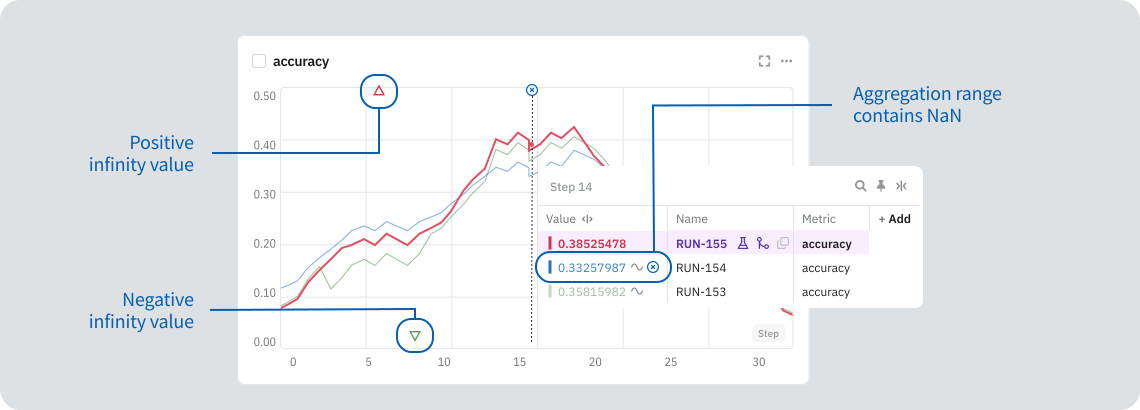
On charts with graphs of multiple different colors, the symbol appears in the color of the graph. The symbol appears grey if there are multiple non-finite values of the same type from different sources for the same x-value.
The chart legend shows details about each rendered point.
If the rendered y-values are downsampled, the aggregation range for a given point might contain both finite and non-finite values. In this case, for a given point, the approximate y-value is shown followed by the special symbol.