Set custom run color
When you create a run, a default color is assigned to it. You can use the Neptune app to modify it and, as a result, visualize your data with custom colors.
Change color of a single run
To change the run color:
-
In the Neptune app, open the run menu () and select Change run color.
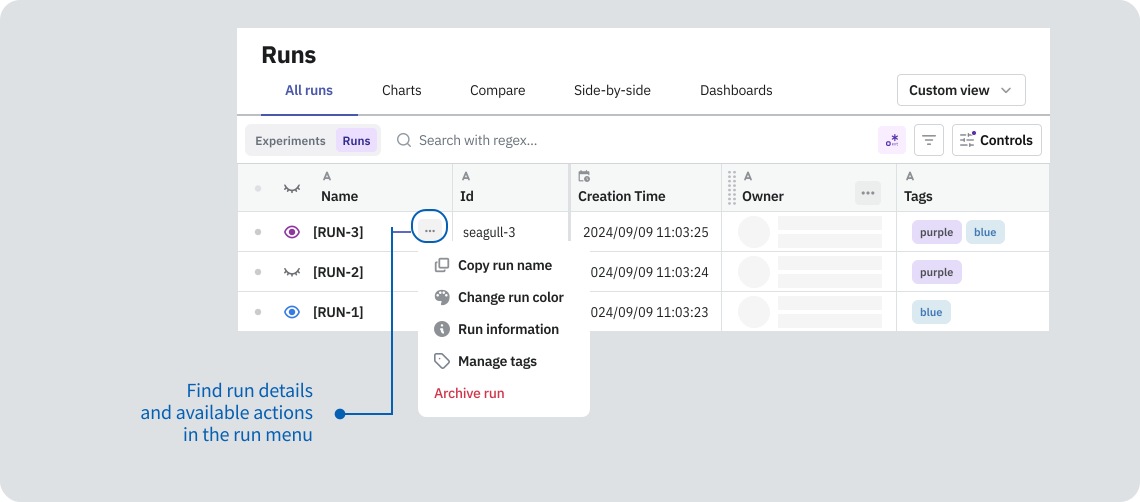
-
Use the color picker to set a new color.
note
If a run belongs to a group with matching turned on, the group color overrides the run color. If a run belongs to multiple groups with matching turned on, the run color resolves to gray.
Change color of multiple runs
You can assign the same color to multiple runs at once if they belong to the same group. For details, see Run groups.
Shuffle colors of selected runs
To improve visibility, you can regenerate the colors of selected runs:
- To access the display options, click the eye icon on the header row of the runs table.
- Select Shuffle colors, or use the key shortcut +.