Export data from Neptune 2.x
Use Neptune Exporter to migrate your data from Neptune 2.x to other platforms, such as MLflow or Weights & Biases.
Exports should already be complete. If yours is not, you are operating without a buffer.
Neptune services shut down permanently on March 5, 2026. All remaining data will be deleted at shutdown, and any active exports will terminate. No extensions or recovery will be possible.
If you are encountering export issues, contact us immediately at support@neptune.ai.
Verify Neptune version
To check which version of the Neptune app you are using:
- Log in to your Neptune workspace.
- Go to Help & Support → About Neptune.
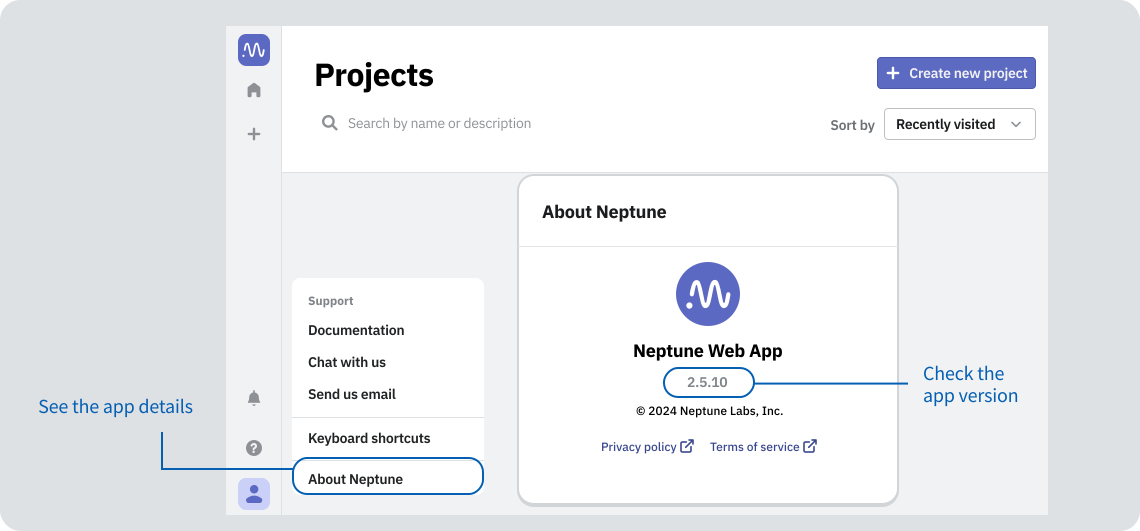
The version number should be 2.x.x.
Example workflows
For detailed instructions, see the Neptune Exporter README file on GitHub.
Export an entire project
To export all runs from the specified projects to your local storage, run:
uv run neptune-exporter export \
  -p "my-workspace/my-project-1" \
  -p "my-workspace/my-project-2" \
  --exporter neptune2 \
  --data-path ./exports/data \
  --files-path ./exports/files
This command saves the Parquet data to the ./exports/data directory and the files to ./exports/files.
Project selection: explicit or workspace discovery
You can choose projects in two ways (do not mix both in one command):
- Explicit mode: Pass one or more
-p/--project-ids(or setNEPTUNE_PROJECT). - Discovery mode: Pass
--workspaceto export all projects in that workspace, optionally with--project-pattern(include regex on project names) and--project-exclude-pattern(exclude regex on project names). Patterns match the project name only (the part afterworkspace/).
Export all projects from a workspace:
uv run neptune-exporter export \
  --workspace "my-workspace" \
  --exporter neptune2 \
  --data-path ./exports/data \
  --files-path ./exports/files
Export only projects whose names match an include pattern:
uv run neptune-exporter export \
  --workspace "my-workspace" \
  --project-pattern ".*prod.*" \
  --exporter neptune2 \
  --data-path ./exports/data \
  --files-path ./exports/files
Export with both include and exclude patterns:
uv run neptune-exporter export \
  --workspace "my-workspace" \
  --project-pattern ".*prod.*" \
  --project-exclude-pattern ".*archive.*" \
  --exporter neptune2 \
  --data-path ./exports/data \
  --files-path ./exports/files
To improve the export speed, you can:
- Split the export by project or run across different processes
- Export only a relevant subset of projects, runs, or attributes
- Exclude files from the export
If you're exporting a large amount of data, we recommend exporting not just across different processes, but different machines altogether. This way, disk I/O is not a bottleneck.
Export specific runs
To export only runs that match the specified pattern, use the -r flag:
uv run neptune-exporter export \
  -p "my-workspace/my-project" \
  --exporter neptune2 \
  -r "RUN-.*" \
where RUN-.* is a regular expression that matches all run IDs starting with RUN-.
The run ID refers to the auto-generated string stored in the
sys/idfield of a run.
Export specific attributes
To export only fields that match the specified patterns, use the -a flag:
uv run neptune-exporter export \
  -p "my-workspace/my-project" \
  --exporter neptune2 \
  -a "metrics/accuracy" -a "metrics/loss" -a "config/.*"
To reduce the amount of exported data, you can exclude attributes that are no longer needed, such as hardware utilization metrics and console logs, which are stored under the monitoring namespace.
Exclude all system monitoring metrics:
uv run neptune-exporter export exporter neptune2 ... --attributes "^(?!monitoring).*$"
Only exclude console logs such as stdout:
uv run neptune-exporter export exporter neptune2 ... --attributes "^(?!.*stdout$).*$"
Export model registry (optional)
If you use the Neptune 2.x model registry, you can export models and model versions to separate directories:
uv run neptune-exporter export-models \
  -p "my-workspace/my-project" \
  --data-path ./exports/model_data \
  --files-path ./exports/model_files
This stores model objects under <data-path>/<project>/models/... and model version objects under <data-path>/<project>/model_versions/.... The same Parquet schema as run export is used; the run_id column holds the model ID or model version ID.
Options:
| Option | Description |
|---|---|
-p / --project-ids | Neptune project IDs (explicit mode). Can be specified multiple times. If not provided, reads from NEPTUNE_PROJECT. |
--workspace | Workspace name for discovery mode. Mutually exclusive with -p / --project-ids. |
--project-pattern | Include regex filter on discovered project names. Can be specified multiple times. Requires --workspace. |
--project-exclude-pattern | Exclude regex filter on discovered project names. Can be specified multiple times. Requires --workspace. |
-q / --models-query | Neptune Query Language filter when selecting models. |
-a / --attributes | One value = regex; multiple values = exact attribute names. |
-c / --classes and --exclude | Include or exclude data classes: parameters, metrics, series, files. |
--include-archived-models | Include trashed models. |
-d / --data-path | Path for model registry Parquet data. Default: ./exports/model_data. |
-f / --files-path | Path for downloaded model files. Default: ./exports/model_files. |
Model registry export also supports workspace discovery. Example:
uv run neptune-exporter export-models \
  --workspace "my-workspace" \
  --project-pattern ".*prod.*" \
  --project-exclude-pattern ".*archive.*" \
  --data-path ./exports/model_data \
  --files-path ./exports/model_files
Validate your export
See what was exported by running:
uv run neptune-exporter summary --data-path ./exports/data
If you also exported model registry data, include the model data path to get a combined summary:
uv run neptune-exporter summary \
  --data-path ./exports/data \
  --model-data-path ./exports/model_data
The summary returns the number of exported projects or runs, attribute types, and basic step statistics (and, when --model-data-path is set, model registry counts).
Improve export performance
Exporting large amounts of data can take a significant amount of time, especially for projects with many runs or large files. A recommended approach is to split the export into parallel jobs instead of exporting everything at once.
Common ways to split exports by:
- Run creation date (time ranges)
- Tags
- Other Neptune Query Language (NQL) filters
Ensure you are only exporting the data you need. See export specific attributes.
We recommend excluding system metrics (monitoring namespace) and files to reduce overall data transfer size.
Example: split exports by run creation date
uv run neptune-exporter export \
  --exporter neptune2 \
  -p "workspace/proj" \
  --runs-query '`sys/creation_time`:datetime > "2024-02-06T05:00:00Z"'
To parallelize, you can run multiple commands at the same time, each covering a different date range, for example:
# Process 1
--runs-query '`sys/creation_time`:datetime >= "2024-01-01T00:00:00Z" AND `sys/creation_time`:datetime < "2024-02-01T00:00:00Z"'

# Process 2
--runs-query '`sys/creation_time`:datetime >= "2024-02-01T00:00:00Z" AND `sys/creation_time`:datetime < "2024-03-01T00:00:00Z"'
More filtering options
See Neptune Query Language for more ways you can split your exports.
For detailed instructions, see the Neptune Exporter README file on GitHub.
Migrate to another tool
You can migrate your exported data to another tool. See the following guides:
We do not endorse any of these tools. They are listed for your convenience only.