Load data into Lightning AI
This guide shows how to load exported data into Lightning AI using LitLogger.
To get in touch with the Lightning AI team, you can email: support@lightning.ai or join their Discord using the invite link.
Customers evaluating Lightning AI as an alternative can book time with an engineer via the booking page linked here.
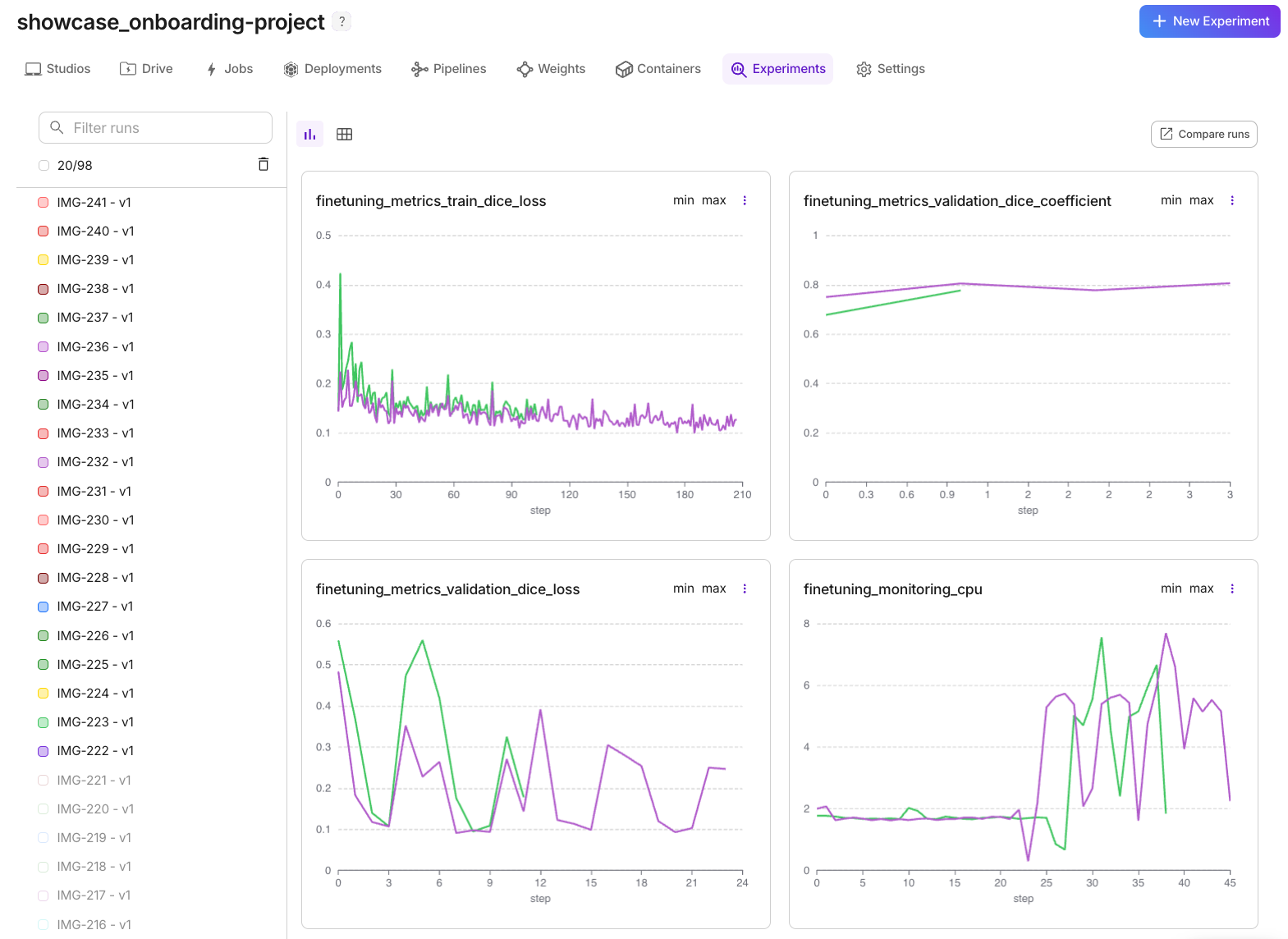
The below image shows an example of Experiment data visualized in the Lightning AI web interface.
Before you start
- Export your data from Neptune using the Neptune Exporter tool. Start from the migration overview.
- Get your Lightning AI credentials:
- use
lightning loginfor authentication, or - set the
--litlogger-user-idand--litlogger-api-keyflags
- use
Validate your export
Before loading the data with LitLogger, inspect what was exported:
uv run neptune-exporter summary --data-path ./exports/data
This command returns the number of exported projects or runs, attribute types, and the basic step statistics.
Load the data with LitLogger
The following command creates one Lightning AI teamspace per Neptune project:
uv run lightning login && \
uv run neptune-exporter load \
  --loader litlogger \
  --data-path ./exports/data \
  --files-path ./exports/files
If the owner (organization) is different from the current authenticated user, you can specify it with the --litlogger-owner flag:
uv run neptune-exporter load \
  --loader litlogger \
  --litlogger-owner my-org \
For detailed instructions, see the Neptune Exporter README file on GitHub.